




Common Captive Portal Problems and How to Fix Them
Learn the most common captive portal problems, including login page not opening, voucher issues, and mobile display problems, plus how to fix them.

Common Captive Portal Problems and How to Fix Them
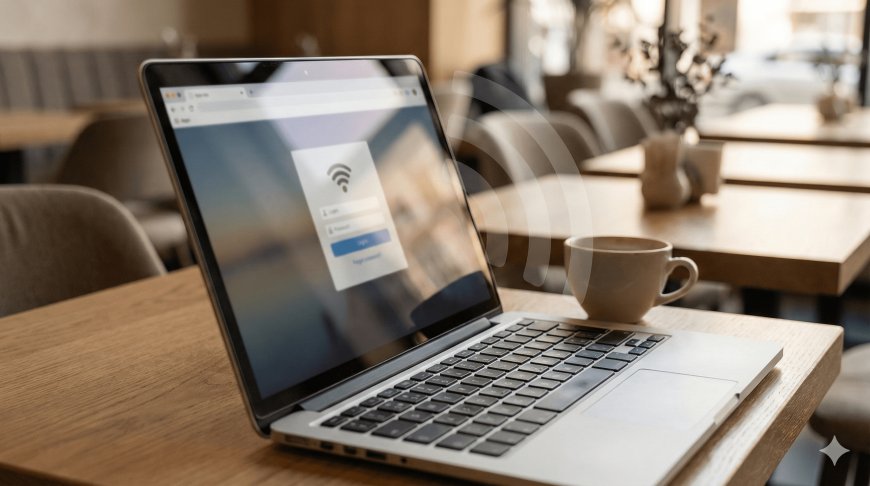
A captive portal is very important in a WiFi hotspot business, but sometimes it can develop problems. Customers may connect to WiFi but fail to see the login page. Others may enter a voucher code but fail to get internet. Some may complain that the page is slow, confusing, or not opening on their phone.
These problems can affect your business because customers may think your WiFi is bad even when the issue is only with the portal setup. That is why every hotspot owner should understand common captive portal problems and how to fix them.
In this guide, we shall explain the most common captive portal problems and practical ways to solve them.
1. Login Page Not Opening Automatically
This is one of the most common captive portal problems. A customer connects to the WiFi, but the login page does not pop up automatically.
This can happen because of phone settings, DNS issues, browser cache, or captive portal detection problems.
How to Fix It
- Tell the customer to open a browser and visit any website.
- Give customers a direct login page address.
- Check DNS settings on the MikroTik router.
- Make sure the hotspot server is active.
- Test with different phones.
- Avoid blocking captive portal detection domains unless necessary.
You can also add a printed notice or poster telling users what to do if the login page does not open.
If the login page does not open, open your browser and visit: login.wifi
2. Phone Connects but Shows “No Internet”
Sometimes a phone connects to WiFi but shows “No Internet.” This can happen before login because the customer has not yet passed through the captive portal.
However, it can also mean there is a problem with your router, DNS, NAT, or ISP connection.
How to Fix It
- Check if the main ISP internet is working.
- Check if MikroTik can ping the internet.
- Confirm NAT masquerade is configured properly.
- Check DNS settings.
- Make sure DHCP is giving IP addresses.
- Confirm the hotspot server is running on the correct interface.
If all customers are affected, the issue is likely from the network setup or ISP. If only one customer is affected, it may be their phone.
3. Voucher Code Not Working
A customer may enter a voucher code and receive an error. This can happen for several reasons.
Common causes include:
- The code was typed wrongly
- The voucher has expired
- The voucher is already used
- The voucher does not exist
- The user profile is misconfigured
- The voucher was created under the wrong profile
How to Fix It
- Check the exact voucher code in MikroTik or your voucher system.
- Confirm whether the voucher is active or expired.
- Check if the code is already logged in on another device.
- Make sure the user profile has correct time and speed limits.
- Ask the customer to send a screenshot of the code if needed.
You should also make your error messages clear so customers know what happened.
Invalid voucher code. Please check your code or contact support.
4. Customer Paid but Cannot Login
This problem is common when customers pay through mobile money and use the transaction ID as a voucher code.
The customer may enter the wrong number, copy only part of the transaction ID, or try to login before the voucher has been created.
How to Fix It
- Explain clearly where the transaction ID is found.
- Add an example transaction ID on the portal.
- Tell customers to copy the code exactly.
- Provide WhatsApp support for payment issues.
- If using automation, confirm that payment verification is working.
Example instruction:
Your voucher code is the Transaction ID in the mobile money message you received after payment.
5. Captive Portal Opens Slowly
If the login page loads slowly, customers may think the whole WiFi service is slow. This can reduce trust and sales.
Slow loading can be caused by large images, heavy videos, external scripts, or poor router storage performance.
How to Fix It
- Compress all images before uploading.
- Use lightweight icons.
- Avoid too many animations.
- Reduce large videos on the login page.
- Keep CSS and JavaScript files clean.
- Test the page on low-end phones.
A simple, fast portal is better than a beautiful page that loads slowly.
6. Captive Portal Looks Bad on Phones
Most hotspot customers use phones. If your portal is not mobile-friendly, customers may fail to read the text, tap buttons, or find the login box.
How to Fix It
- Use responsive design.
- Make buttons large enough.
- Use readable font sizes.
- Keep package cards simple.
- Avoid very wide tables on mobile.
- Test on Android and iPhone.
Your portal should be designed mainly for phones because that is what most customers use.
7. Login Page Keeps Redirecting Again and Again
Sometimes customers login successfully, but the portal keeps sending them back to the login page. This can happen because of cookie issues, wrong redirect settings, CHAP problems, or hotspot session problems.
How to Fix It
- Check if the user is actually logged in under active users.
- Confirm that the login form action is correct.
- Check MikroTik hotspot files.
- Make sure CHAP script is properly included if CHAP is enabled.
- Test with a simple default login page to isolate the problem.
If the default MikroTik login page works but your custom page does not, the issue is likely in your HTML or JavaScript.
8. Some Phones Open Login Page, Others Do Not
Different phones detect captive portals differently. Android, iPhone, Windows, and smart TVs may behave differently.
How to Fix It
- Test your captive portal on different devices.
- Provide a direct login URL.
- Make sure DNS is working properly.
- Check if captive detection domains are blocked or allowed incorrectly.
- Tell customers to open a browser if the popup does not appear.
It is good to have a help page called “Login page not opening?” for such users.
9. Customers Cannot Logout
Some customers may want to logout so they can use the voucher later or switch devices. If there is no logout button, they may get confused.
How to Fix It
- Add a logout link on the status page.
- Show remaining time if possible.
- Explain device limits clearly.
- Provide support for customers who want to switch devices.
A clear status page can improve customer experience after login.
10. Customers Share One Voucher With Many Devices
If customers share voucher codes with many devices, your network can become slow and your business can lose money.
How to Fix It
- Set device limits on user profiles.
- Use one device per voucher for normal packages.
- Create family or group packages for multiple devices.
- Explain device limits on the captive portal.
Example:
Standard vouchers work on one device only. For multiple devices, choose Family Pack or Group Pack.
11. Customers Complain About Expired Vouchers
Customers may complain if they do not understand when the voucher starts counting. Some vouchers start counting immediately after first login, while others may follow different rules depending on your setup.
How to Fix It
- Explain voucher validity clearly.
- Show package duration on the portal.
- Use clear package names like 2 Hours, 24 Hours, 1 Week.
- Check user profile settings.
- Train agents to explain voucher rules.
Clear communication prevents many complaints.
12. Captive Portal Images Not Showing
Sometimes images, icons, or logos do not load on the captive portal. This can happen if file paths are wrong or files were not uploaded properly.
How to Fix It
- Check that image files are uploaded to the correct folder.
- Confirm file names match exactly.
- Avoid spaces in file names.
- Use correct paths such as img/logo.png.
- Test after uploading to MikroTik files.
File names are important. For example, Logo.png and logo.png may not be treated the same.
13. Payment Page Opens but Login Does Not Work
If you use an external payment page or billing system, the payment may work but login may fail if the voucher is not created properly.
How to Fix It
- Check payment confirmation logs.
- Confirm webhook is receiving payment data.
- Check whether the voucher is created in MikroTik.
- Test payment with small amounts.
- Confirm transaction ID format matches the voucher format.
Payment integration should be tested carefully before customers use it.
14. Best Way to Troubleshoot Captive Portal Issues
When fixing captive portal problems, test step by step.
- Check if ISP internet is working.
- Check if MikroTik has internet.
- Check if customers receive IP addresses.
- Check if the hotspot server is active.
- Test the default MikroTik login page.
- Test your custom login page.
- Test voucher login.
- Test after login browsing.
- Test on different phones.
This helps you know exactly where the problem is.
15. Conclusion
Captive portal problems are common in WiFi hotspot businesses, but most of them can be fixed with proper setup and testing.
The most common issues include login page not opening, voucher codes not working, slow portal loading, mobile display problems, payment confusion, and redirect errors.
To reduce problems, keep your portal simple, mobile-friendly, fast, and clear. Test it on different devices before launching. Also provide support buttons and help pages so customers can solve simple issues quickly.
A reliable captive portal improves customer experience and helps your WiFi hotspot business grow.
Need More Captive Portal Fixes?
Visit Finjora.com for more MikroTik hotspot guides, captive portal troubleshooting tips, voucher setup tutorials, and WiFi business advice.
What's Your Reaction?
 Like
0
Like
0
 Dislike
0
Dislike
0
 Love
0
Love
0
 Funny
0
Funny
0
 Angry
0
Angry
0
 Sad
0
Sad
0
 Wow
0
Wow
0