


How to Design a Captive Portal That Converts WiFi Users Into Paying Customers
Learn how to design a captive portal that attracts users, builds trust, and converts WiFi visitors into paying customers through better layout, packages, and clear calls to action.

Best Features Every WiFi Captive Portal Should Have
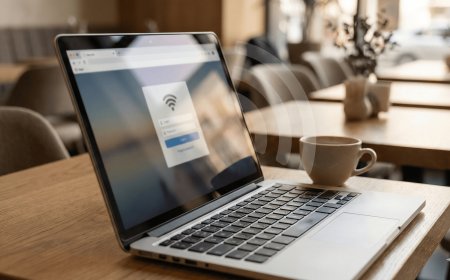
A WiFi captive portal is one of the most important parts of a hotspot business. It is the first page customers see when they connect to your WiFi network. This page can decide whether a customer buys internet, understands your packages, contacts support, or leaves without paying.
Many hotspot owners make the mistake of creating a very simple login page with only a username and password box. That can work, but it does not fully support the business. A good captive portal should do more than allow login. It should help you sell vouchers, explain payment steps, support users, and promote your brand.
In this guide, we shall look at the best features every WiFi captive portal should have if you want your hotspot business to look professional and make more sales.
1. Clear Business Name and Logo
Your captive portal should clearly show your WiFi business name and logo. This helps customers know they are connected to the right network. It also makes your service look professional and trustworthy.
For example, if your WiFi business is called WiFi YO, the name should appear clearly at the top of the page. You can also add a simple slogan such as:
WiFi YO
Your Internet, Your Community, Your Way.
Branding helps customers remember your service and recommend it to others.
2. Easy Voucher Code Login Box
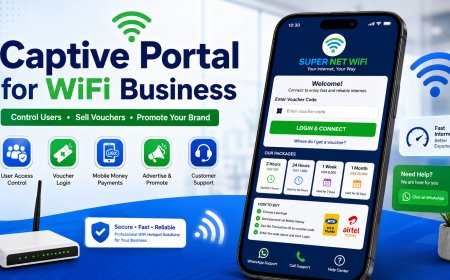
The voucher login box is the most important part of the captive portal. Customers should easily see where to enter their voucher code.
The input box should be large enough, clear, and placed in a visible area. Avoid hiding the login form below too many images or long text.
A good login form can include:
- Voucher code input field
- Clear login button
- Short instruction above the form
- Error message if the code is wrong
- Support link if the customer needs help
Example text:
Enter your voucher code below and click Login to access the internet.
3. Visible WiFi Package Cards
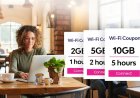
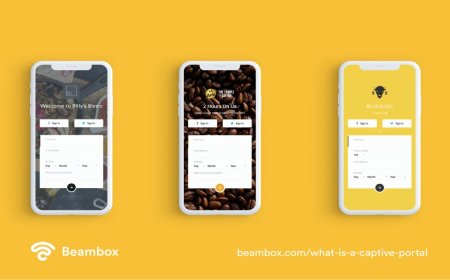
Your captive portal should show your WiFi packages clearly. Many customers connect to the WiFi but do not know the available prices. If your packages are visible, customers can quickly decide what to buy.
| Package | Price | Best For |
|---|---|---|
| 2 Hours | UGX 500 | Quick browsing |
| 24 Hours | UGX 1,000 | Daily use |
| 1 Week | UGX 6,000 | Regular users |
| 1 Month | UGX 25,000 | Heavy users |
You can also mark some packages with labels like Most Popular, Best Value, or Recommended. These small labels can help guide customers toward better packages.
4. Simple Payment Instructions
A good captive portal should explain how customers can pay. If customers do not understand how to buy a voucher, they may leave without purchasing.
Payment instructions should be short and easy to follow.
How to Buy WiFi:
1. Choose your package.
2. Send payment to 07XXXXXXXX.
3. Use the Transaction ID as your voucher code.
4. Enter the code and click Login.
This is especially useful when customers pay through mobile money and use the transaction ID as the voucher code.
5. WhatsApp Support Button
Customers will sometimes need help. Some may fail to login, some may enter a wrong voucher, and others may not understand how to pay.
Adding a WhatsApp support button makes it easy for them to contact you quickly.
Your support button can say:
- Chat on WhatsApp
- Need Help?
- Contact Support
- Buy Voucher on WhatsApp
This small feature can improve customer trust and reduce frustration.
6. Call Support Button
Not every customer wants to use WhatsApp. Some prefer calling directly, especially when they need quick help.
A call button is useful for customers who are stuck on the login page. When they tap it, their phone should open the dialer with your support number.
This is helpful for new customers who may not understand how your WiFi system works.
7. Help Links for Common Problems
Many hotspot problems happen again and again. Instead of explaining the same thing to every customer, you can add help links on your captive portal.
Examples of useful help links include:
- How to Connect on TV
- Login Page Not Opening?
- How to Find Your Transaction ID
- How to Reset Network Settings on iPhone
- How to Buy a Voucher
These help pages reduce support calls and improve customer experience.
8. Trial Access Button
A trial access button allows new customers to test your WiFi for a short time before buying. For example, you can offer 5 minutes of free internet.
A button can say:
Click & Enjoy 5 Min Free
This can help customers trust your internet quality. After testing, they may be more willing to buy a voucher.
9. Mobile-Friendly Layout
Most hotspot customers use phones. Your captive portal must look good on small screens.
A mobile-friendly portal should have:
- Large buttons
- Readable text
- Simple layout
- Fast loading images
- Package cards that fit on phone screens
- No hidden login form
If your page looks bad on phones, customers may fail to login or understand your packages.
10. Fast Loading Speed
A captive portal should load quickly. If the page is too heavy, customers may think the WiFi is not working.
Avoid using very large images, too many animations, or heavy scripts. Keep the page clean and optimized.
A fast portal improves the first impression of your WiFi service.
11. Clear Error Messages
When a customer enters a wrong or expired voucher code, the portal should show a clear message.
Instead of only saying “error,” use helpful messages like:
- Invalid voucher code. Please check and try again.
- This voucher has expired.
- This voucher is already in use.
- Please contact support if you need help.
Clear error messages help customers know what to do next.
12. Terms and Fair Usage Notice
A fair usage notice helps protect your business. It tells customers how your WiFi should be used.
You can include a short message like:
By using this WiFi service, you agree to use it responsibly. Illegal downloads, hacking, abuse, or sharing access may lead to disconnection.
This helps set expectations and protects your network.
13. Redirect After Login
After a customer logs in successfully, you can redirect them to a useful page.
You can redirect users to:
- Your website
- A thank-you page
- A WhatsApp group page
- A promotion page
- A customer guide page
This helps you promote your brand and communicate with customers even after login.
14. Package Upgrade Messages
Your captive portal can also help customers upgrade to bigger packages.
Example:
Best Value: 1 Week for UGX 6,000. Save more compared to buying daily.
Small promotional messages can help increase your average sales.
15. Conclusion
A good captive portal is more than a login page. It is a sales page, support page, payment guide, and brand page for your WiFi business.
The best captive portal should include a clear logo, voucher login box, package cards, payment instructions, WhatsApp support, help links, trial access, and a mobile-friendly design.
When your captive portal is clear and professional, customers find it easier to buy, login, and trust your WiFi service.
Need More Captive Portal Tips?
Visit Finjora.com for more WiFi hotspot business guides, MikroTik setup tips, captive portal design ideas, and voucher system tutorials.
What's Your Reaction?
 Like
0
Like
0
 Dislike
0
Dislike
0
 Love
0
Love
0
 Funny
0
Funny
0
 Angry
0
Angry
0
 Sad
0
Sad
0
 Wow
0
Wow
0