



How to Secure Your MikroTik Router for a WiFi Business
Learn how to secure your MikroTik router for a WiFi hotspot business by changing passwords, disabling unused services, backing up settings, and protecting access.

How to Secure Your MikroTik Router for a WiFi Business
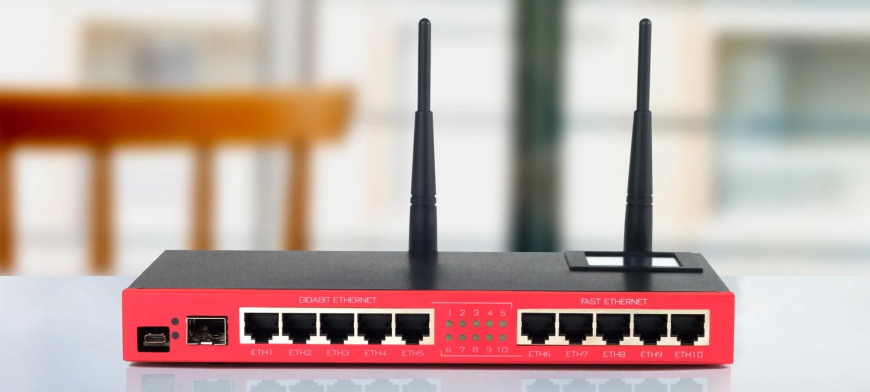
Your MikroTik router is the heart of your WiFi hotspot business. It controls users, vouchers, speed limits, internet access, and customer sessions. If your MikroTik is not secure, your whole business can be at risk.
A poorly secured router can be accessed by unauthorized people. They can change settings, create free users, disconnect customers, reset configurations, or damage your network.
In this guide, we shall explain simple but important ways to secure your MikroTik router for a WiFi business.
1. Change the Default Admin Login
One of the first things you should do is change the default MikroTik login details.
Many routers come with default usernames or empty passwords. This is dangerous because anyone who knows MikroTik basics may try to login.
Create a new admin user with a strong password and remove or disable the default admin account if possible.
2. Use a Strong Password
A weak password can put your router at risk. Do not use simple passwords like 123456, admin, password, or your business name only.
A strong password should include:
- Capital letters
- Small letters
- Numbers
- Symbols
- At least 10 characters
Example format:
SuperNet@2026#SecureDo not share your router password with many people.
3. Create Separate Users for Staff
If you have workers or technicians, do not give everyone the main admin password.
Create separate user accounts with limited permissions where possible.
This helps you know who accessed the router and reduces the risk of someone making unwanted changes.
4. Disable Unused Services
MikroTik has services such as WinBox, WebFig, SSH, Telnet, FTP, and API. If you do not use some of them, disable them.
Unused services can create security risks.
Common services to review:
- Telnet
- FTP
- WWW
- SSH
- API
- API-SSL
Keep only the services you really use.
5. Limit Router Access
Do not allow everyone on the customer network to access the router login page.
You can limit access so only trusted devices or management IP addresses can login.
This helps prevent customers from trying to access your MikroTik settings.
6. Use Firewall Rules
Firewall rules help protect your router from unwanted access.
You can create rules to block access to router management ports from customer networks.
For example, customers should not be able to access router services like WinBox or WebFig unless you allow it.
7. Keep WinBox Access Private
WinBox is useful for managing MikroTik, but it should not be open to everyone.
Only access WinBox from trusted devices. Avoid exposing WinBox publicly on the internet unless you know how to secure it properly.
If remote access is needed, use a safer method such as VPN.
8. Backup Your Configuration
Always keep a backup of your MikroTik configuration. If the router fails, resets, or settings are changed wrongly, a backup can save you.
Backup after major changes such as:
- Hotspot setup
- User profile setup
- Firewall configuration
- Bandwidth management changes
- Payment integration setup
- Access point expansion
Store backups safely outside the router as well.
9. Export Important Settings
Apart from a normal backup file, you can also export configuration text. This helps you understand and restore settings more clearly.
An export can be useful when moving settings to another MikroTik router or troubleshooting configuration problems.
10. Update RouterOS Carefully
RouterOS updates can improve security and fix bugs, but updates should be done carefully.
Before updating:
- Backup your configuration
- Check if your hotspot system supports the version
- Update during low-traffic hours
- Restart carefully
- Test hotspot after update
Do not update blindly during busy customer hours.
11. Protect Physical Access
Router security is not only about passwords. Physical access also matters.
Keep your MikroTik router in a safe place where customers or strangers cannot reset it, unplug it, or connect unauthorized cables.
Protect:
- Router
- Power adapter
- Ethernet cables
- Switches
- Access point cables
12. Monitor Unknown Users
Check your network regularly for unknown users, strange devices, or suspicious activity.
If you see users you do not recognize, investigate quickly.
In a voucher business, every active user should be connected through a valid login or authorized access method.
13. Avoid Sharing Admin Access
Do not share your MikroTik admin login with agents or customers. Agents should only sell vouchers or collect payments. They do not need router access.
If someone needs access for technical work, change the password after the work is completed.
14. Secure Your Hotspot Files
If you customize your login page, keep copies of your hotspot files. Someone may change or delete them by mistake.
Keep backups of:
- login.html
- status.html
- logout.html
- redirect pages
- CSS files
- JavaScript files
- Images and logos
This helps you restore your portal quickly if something goes wrong.
15. Watch for Suspicious Changes
If users, profiles, firewall rules, or hotspot files change without your knowledge, investigate immediately.
Suspicious changes can affect your income and customer access.
Regular checking helps you catch problems early.
16. Conclusion
Securing your MikroTik router is very important for a WiFi hotspot business. Your router controls your customers, vouchers, internet access, and business income.
Change default logins, use strong passwords, disable unused services, limit access, create backups, and protect physical equipment.
A secure MikroTik router helps protect your WiFi business from unauthorized access, configuration loss, and unnecessary downtime.
What's Your Reaction?
 Like
0
Like
0
 Dislike
0
Dislike
0
 Love
0
Love
0
 Funny
0
Funny
0
 Angry
0
Angry
0
 Sad
0
Sad
0
 Wow
0
Wow
0